Phantom Inventory in NetSuite: When the Totals Say Zero but the Bins Disagree
Your inventory report says you have it. Your warehouse says you don’t. The location total checks out, so nobody thinks to look closer. That gap is phantom inventory, and it’s more common in NetSuite than most people realize. We recently cleaned this up for a client with hundreds of lot-tracked items. Here’s what caused it,…
Your inventory report says you have it. Your warehouse says you don’t. The location total checks out, so nobody thinks to look closer. That gap is phantom inventory, and it’s more common in NetSuite than most people realize.
We recently cleaned this up for a client with hundreds of lot-tracked items. Here’s what caused it, why the usual checks missed it, and how we fixed it.
What phantom inventory is
NetSuite tracks quantity at three levels: the location, the bin, and the lot (or serial) number. Phantom inventory happens when those levels stop agreeing.
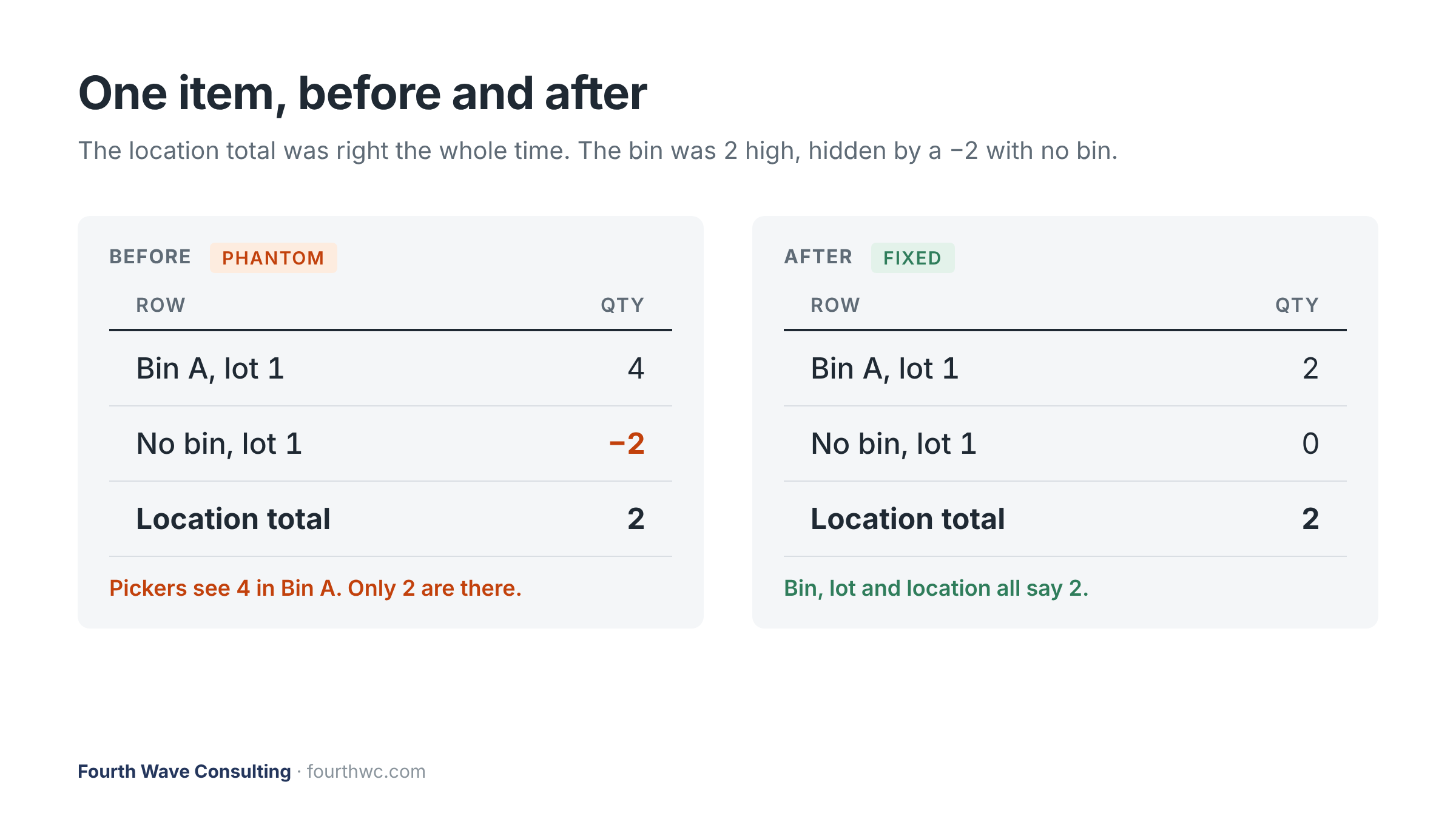
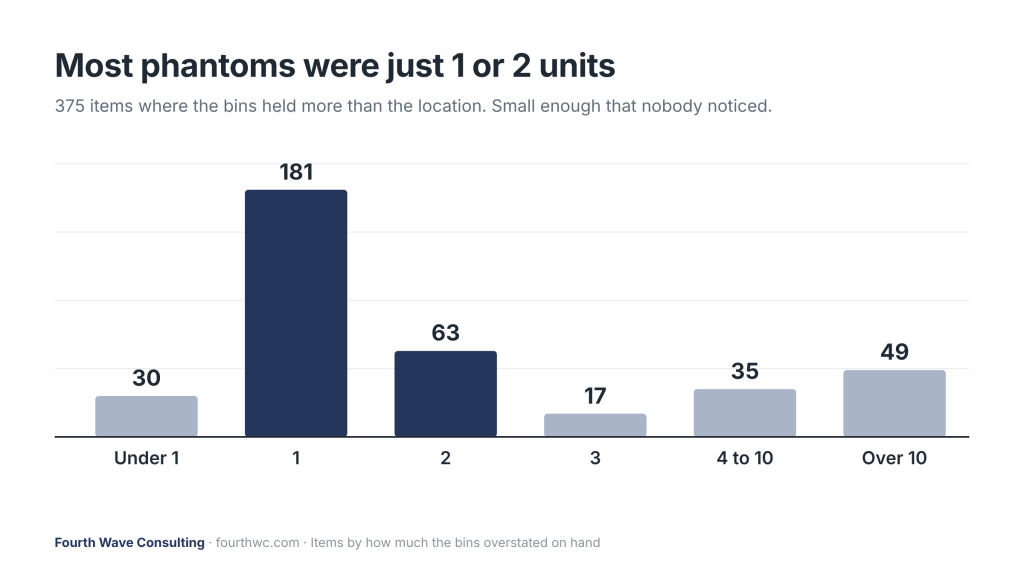
A simple example: a bin shows 4 units, but there’s also a -2 sitting on the same item with no bin at all. The location total comes out to 2, which is correct. But your pickers see 4 in the bin and go looking for stock that isn’t there. Or worse, the system lets someone pick against a lot that doesn’t really exist.
How it happens
In this account we found four causes. None of them were anybody doing something wrong on purpose.
- Bins turned on after inventory already existed. When bins were enabled, existing stock landed in a “Place Holder” bin. Later adjustments didn’t always line up with it, so quantities got stranded.
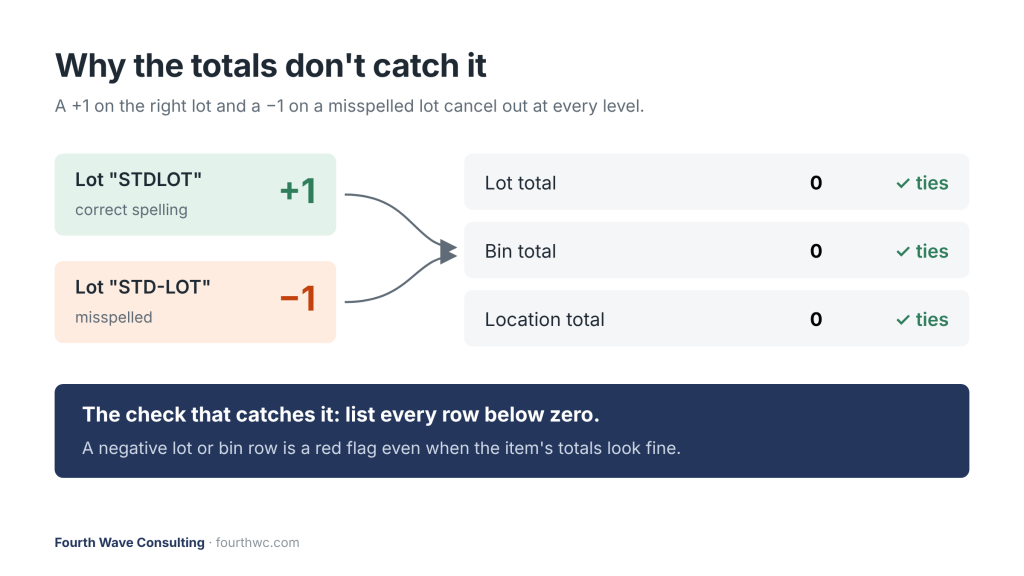
- Misspelled lot numbers. The client used one standard lot name, but we found about 10 spelling variations of it (extra dashes, different capitalization). A +1 on the right lot and a -1 on the misspelled one look like nothing happened.
- Fulfillments stuck in Pack status. An old fulfillment that never shipped was holding lot and bin detail. On-hand still showed the stock, but nobody could select it.
- Returns received to the wrong lot. A return from a prior year came back in on a lot that didn’t match, creating a real difference that looked like a phantom.
Why normal checks miss it
The usual check is to compare totals: does the location quantity match the sum of the bins, and the sum of the lots? If yes, you move on.
Phantom inventory passes that test. A +1 and a -1 in the same bin net to zero. Every total ties out, and the problem stays hidden. Our own first pass missed several items for exactly this reason.
How we found it
We ran three checks against the live inventory balances, not a saved report:
- Compare the totals. Location vs. bin vs. lot for every item. This catches the obvious mismatches.
- Pull every negative row. Any bin or lot with a quantity below zero is a red flag, even if the item’s total looks fine. This is the check that caught the offsetting +1/-1 pairs.
- Look for lot name variations. Group lot names that are close but not identical. A misspelled lot is usually where a negative is hiding.
Then we checked the history on anything odd before calling it a phantom. One item turned out to be a real return, not a ghost. Adjusting it away would have been wrong.
The fix
The fix was a set of paired inventory adjustments, imported by CSV:
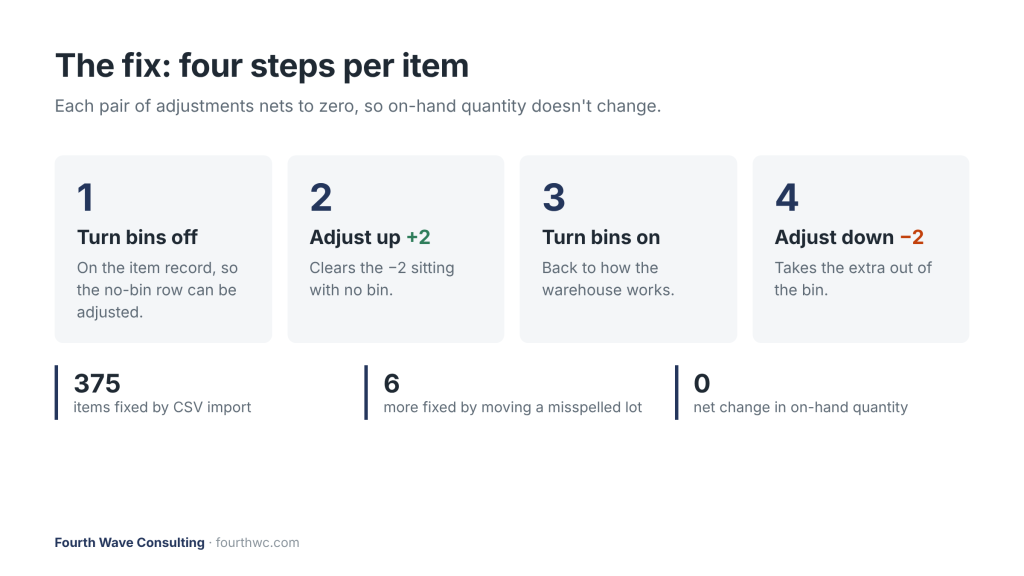
- Turn bins off for the affected items and post an adjustment that clears the no-bin negatives.
- Turn bins back on and post a second adjustment that takes the extra quantity out of the bin.
- Correct the lots by moving quantity off the misspelled lot and back to the right one.
A few things made this go smoothly:
- Get the direction right. Your list shows the balances as they are. The adjustment has to be the reverse. Post them as written and you double the phantom.
- Split by item type. Regular inventory items and lot assemblies import differently, so they went in separate files.
- Use clear external IDs on every import so nothing collides with an earlier load.
- Verify after posting. We re-ran the same checks to confirm every item reconciled.
- Check the cost impact. After NetSuite’s cost accounting ran, most adjustments washed to $0.00. A few left small rounding differences, which we tracked down and booked so accounting knew where they landed.
Keeping it from coming back
- Standardize lot names. Pick one format and stick to it. Year-specific lots (one per season) make old stock easy to spot and write off.
- Run a negative-balance check monthly. It takes minutes and catches problems before they spread.
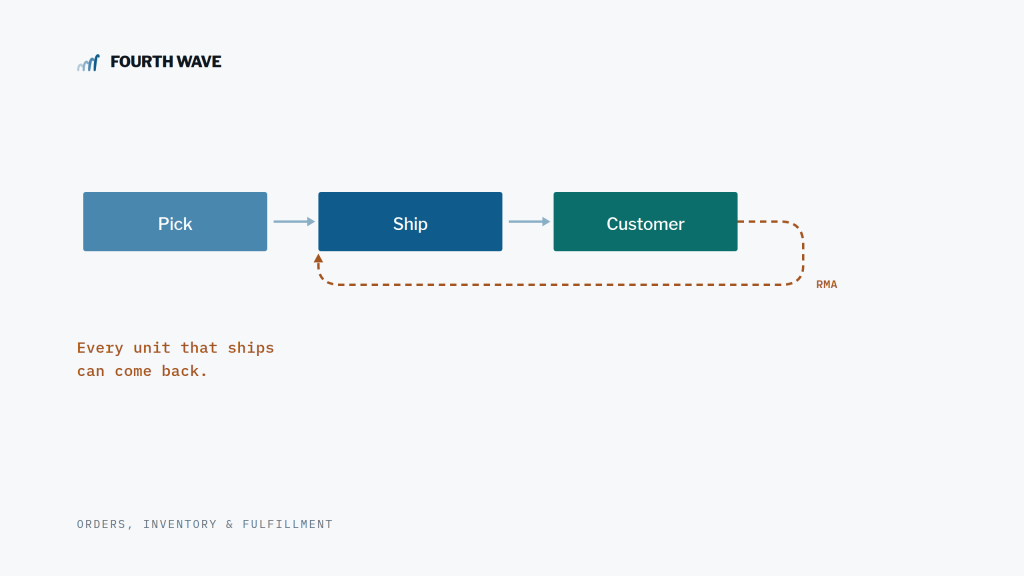
- Clear out stuck fulfillments. Anything sitting in Pick or Pack for weeks is holding inventory hostage.
- Plan before turning on bins or lots. If you’re adding either to an existing account, clean up first so stock doesn’t get stranded.
Want to talk?
If your bins and lots don’t match what’s on the shelf, send us a few item numbers and where you’re seeing it. We’ll help you find it. Book a free hour.
Author: Renee Chandler, Fourth Wave Consulting. NetSuite inventory and operations.